Passwords are a liability. They get phished, reused across services, and forgotten at the worst possible time. Your users hate them. Your support team hates them. And if you’re storing password hashes, you’re one breach away from a very bad week.
Passkeys replace all of that with public-key cryptography. The user’s device holds a private key that never leaves the device. Your server holds only the public key. There’s nothing to phish, nothing to leak, and nothing to remember. The user just taps their fingerprint sensor or glances at their phone.
We added passkeys to our production Vue + .NET application — an event management platform with a web frontend and native iOS/Android apps built with Capacitor. This article walks through exactly how we did it, from the database schema to the login button.
We’ll cover five things:
- What passkeys actually are — the 60-second version
- The .NET backend — FIDO2 registration and authentication with fido2-net-lib
- The Vue frontend — making the browser do the work with @simplewebauthn/browser
- The .well-known files — the glue that makes native apps work
- Bonus: Capacitor native support — passkeys on iOS and Android with minimal extra code
Passkeys in 60 Seconds
A passkey is a cryptographic key pair. When a user registers a passkey on your site, their device (browser, phone, security key) generates a private key and a public key. The private key stays on the device — protected by the OS, unlocked by biometrics or a PIN. The public key gets sent to your server.
When the user logs in, your server sends a random challenge. The device signs it with the private key. Your server verifies the signature with the stored public key. If it checks out, the user is authenticated.
That’s the entire protocol. Two “ceremonies” — registration (create a credential) and authentication (prove you own it) — each with two steps: get options from the server, then let the browser handle the cryptography.
The private key never leaves the device. There is nothing to phish.
The underlying standard is WebAuthn (part of FIDO2), supported by every major browser and operating system since 2023. Modern passkeys sync across devices via iCloud Keychain, Google Password Manager, or Windows Hello — so losing your phone doesn’t lock you out.
Phishing resistant
- Passwords: No
- TOTP / 2FA: Partially
- Passkeys: Yes
Nothing to remember
- Passwords: No
- TOTP / 2FA: No
- Passkeys: Yes
Works across devices
- Passwords: Yes (reuse risk)
- TOTP / 2FA: Requires app
- Passkeys: Yes (synced)
Server stores
- Passwords: Hash (sensitive)
- TOTP / 2FA: Shared secret
- Passkeys: Public key only
User experience
- Passwords: Poop
- TOTP / 2FA: Tolerable
- Passkeys: One tap for username and password
The .NET Backend
The server side handles four things: generating registration challenges, verifying attestations, generating authentication challenges, and verifying assertions. We use fido2-net-lib (NuGet: Fido2.AspNet v4.0.0), which implements the full FIDO2 protocol.
Configuration
Three values drive the FIDO2 setup:
builder.Services.AddFido2(options =>
{
    options.ServerDomain = builder.Configuration["Fido2:ServerDomain"] ?? "localhost";
    options.ServerName = builder.Configuration["Fido2:ServerName"] ?? "Eport";
    options.Origins = builder.Configuration.GetSection("Fido2:Origins").Get<HashSet<string>>() ?? [];
});
builder.Services.AddScoped<IPasskeyService, PasskeyService>();
"Fido2": {
  "ServerDomain": "oma.eport.fi",
  "ServerName": "Eport",
  "Origins": [ "https://oma.hippa.fi", "https://oma.poltesali.fi", "https://oma.eport.fi" ],
  "RelatedOrigins": [ "https://oma.hippa.fi", "https://oma.poltesali.fi" ]
}
ServerDomain is the Relying Party ID — it must match the domain where users register passkeys. Origins lists every origin that will call the WebAuthn API. If you serve from multiple domains (like we do), all of them need to be listed here. ServerName is a human-readable label shown in browser prompts. RelatedOrigins lists origins that share passkeys with the primary RP domain — we’ll use this for the “.well-known/webauthn” endpoint later.
The Credential Entity
Each registered passkey is stored as a row in SQL Server:
public class PasskeyCredential
{
    public Guid Id { get; set; }
    public int UserId { get; set; }
    public byte[] CredentialId { get; set; } = [];
    public byte[] PublicKey { get; set; } = [];
    public uint SignCount { get; set; }
    public string? CredType { get; set; }
    public Guid AaGuid { get; set; }
    public string? FriendlyName { get; set; }
    public DateTime CreatedAt { get; set; }
    public DateTime? LastUsedAt { get; set; }
    public virtual UserProfile User { get; set; } = null!;
}
CredentialId and PublicKey are byte arrays — the raw binary from the authenticator. SignCount is a monotonically increasing counter that the authenticator increments on each use — if the server sees a lower count than expected, it means the credential may have been cloned. AaGuid identifies the authenticator type. FriendlyName is what the user sees in their profile ("My MacBook", "Work YubiKey").
The EF Core configuration indexes CredentialId for fast lookups during authentication, and UserId for listing a user's credentials. The CredentialId gets a generous MaxLength(1024) because different authenticators produce different sizes:
modelBuilder.Entity<PasskeyCredential>(entity =>
{
    entity.HasKey(e => e.Id);
    entity.ToTable("PasskeyCredentials", "dbo");
    entity.HasIndex(e => e.CredentialId);
    entity.HasIndex(e => e.UserId);
    entity.Property(e => e.CredentialId).IsRequired().HasMaxLength(1024);
    entity.Property(e => e.PublicKey).IsRequired();
    entity.Property(e => e.CredType).HasMaxLength(32);
    entity.Property(e => e.FriendlyName).HasMaxLength(256);
    entity.HasOne(d => d.User)
        .WithMany(p => p.PasskeyCredentials)
        .HasForeignKey(d => d.UserId)
        .OnDelete(DeleteBehavior.Cascade);
});
The Registration Ceremony
Registration is a two-step exchange: the server generates options (including a random challenge), the browser does the cryptography, and the server verifies the result.
Step 1 — Generate options:
public async Task<CredentialCreateOptions> GetRegistrationOptionsAsync(
    int userId, string userName, string displayName)
{
    var existingCredentials = await context.PasskeyCredentials
        .Where(c => c.UserId == userId)
        .Select(c => new PublicKeyCredentialDescriptor(c.CredentialId))
        .ToListAsync();

    var user = new Fido2User
    {
        Id = BitConverter.GetBytes(userId),
        Name = userName,
        DisplayName = displayName
    };

    var options = fido2.RequestNewCredential(new RequestNewCredentialParams
    {
        User = user,
        ExcludeCredentials = existingCredentials,
        AuthenticatorSelection = new AuthenticatorSelection
        {
            ResidentKey = ResidentKeyRequirement.Preferred,
            UserVerification = UserVerificationRequirement.Preferred
        },
        AttestationPreference = AttestationConveyancePreference.None
    });

    cache.Set($"fido2-reg-{userId}", options, new MemoryCacheEntryOptions
    {
        AbsoluteExpirationRelativeToNow = TimeSpan.FromMinutes(5),
        Size = 1024
    });

    return options;
}
Three things worth noting. ExcludeCredentials lists the user's existing passkeys so the browser won't try to re-register the same authenticator. ResidentKey = Preferred enables discoverable credentials — passkeys that the browser can offer without the user typing a username first. And AttestationPreference = None means we don't ask for attestation data (authenticator manufacturer certificates), which is the privacy-friendly default and simplifies the flow.
The generated options are cached in MemoryCache with a 5-minute TTL. This is the challenge window — the user has five minutes to complete the registration on their device before the challenge expires.
Step 2 — Verify the attestation:
public async Task<PasskeyCredentialInfo> VerifyRegistrationAsync(
    int userId,
    AuthenticatorAttestationRawResponse attestationResponse,
    string? friendlyName)
{
    if (!cache.TryGetValue($"fido2-reg-{userId}", out CredentialCreateOptions? options) || options == null)
        throw new CustomerSafeException("Challenge expired. Please try again.");
    cache.Remove($"fido2-reg-{userId}");
    var credential = await fido2.MakeNewCredentialAsync(new MakeNewCredentialParams
    {
        AttestationResponse = attestationResponse,
        OriginalOptions = options,
        IsCredentialIdUniqueToUserCallback = async (args, _) =>
        {
            var exists = await context.PasskeyCredentials
                .AnyAsync(c => c.CredentialId == args.CredentialId && c.UserId != userId);
            return !exists;
        }
    });
    var entity = new PasskeyCredential
    {
        Id = Guid.NewGuid(),
        UserId = userId,
        CredentialId = credential.Id,
        PublicKey = credential.PublicKey,
        SignCount = credential.SignCount,
        CredType = credential.Type.ToString(),
        AaGuid = credential.AaGuid,
        FriendlyName = friendlyName,
        CreatedAt = DateTime.UtcNow
    };
    context.PasskeyCredentials.Add(entity);
    await context.SaveChangesAsync();
    return new PasskeyCredentialInfo
    {
        Id = entity.Id,
        FriendlyName = entity.FriendlyName,
        CreatedAt = entity.CreatedAt,
        LastUsedAt = entity.LastUsedAt
    };
}
The cache lookup is one-time-use — we remove the options immediately after retrieval. The IsCredentialIdUniqueToUserCallback ensures no two users can register the same authenticator. After verification, we persist the public key and metadata.
The Authentication Ceremony
Authentication follows the same pattern: server generates a challenge, browser signs it, server verifies.
Step 1 — Generate assertion options:
public async Task<AssertionOptions> GetAuthenticationOptionsAsync(string? username)
{
    var allowCredentials = new List<PublicKeyCredentialDescriptor>();
    if (!string.IsNullOrWhiteSpace(username))
    {
        var user = await context.UserProfiles
            .FirstOrDefaultAsync(u => u.UserName == username || u.Email == username);
        if (user != null)
        {
            allowCredentials = await context.PasskeyCredentials
                .Where(c => c.UserId == user.UserId)
                .Select(c => new PublicKeyCredentialDescriptor(c.CredentialId))
                .ToListAsync();
        }
    }
    var options = fido2.GetAssertionOptions(new GetAssertionOptionsParams
    {
        AllowedCredentials = allowCredentials,
        UserVerification = UserVerificationRequirement.Preferred
    });
    var challengeKey = Convert.ToBase64String(options.Challenge);
    cache.Set($"fido2-auth-{challengeKey}", options, new MemoryCacheEntryOptions
    {
        AbsoluteExpirationRelativeToNow = TimeSpan.FromMinutes(5),
        Size = 1024
    });
    return options;
}
The username parameter is optional. When omitted, the browser shows all available passkeys for this Relying Party — this is the "discoverable credentials" flow where the user doesn't need to type anything before authenticating. When provided, it narrows the list to that user's credentials.
There’s a subtlety in the cache key: we use the base64-encoded challenge bytes, not a user ID, because at this point we don’t know which user is authenticating — that’s what we’re trying to find out.
Step 2 — Verify the assertion:
public async Task<UserProfile> VerifyAuthenticationAsync(
    AuthenticatorAssertionRawResponse assertionResponse)
{
    var credentialIdBytes = assertionResponse.RawId;
    var storedCredential = await context.PasskeyCredentials
        .FirstOrDefaultAsync(c => c.CredentialId == credentialIdBytes)
        ?? throw new CustomerSafeException("Passkey not found.");

    // Extract challenge from clientDataJSON to look up cached options
    var clientData = System.Text.Json.JsonSerializer.Deserialize<JsonElement>(
        assertionResponse.Response.ClientDataJson);
    var challengeB64Url = clientData.GetProperty("challenge").GetString()
        ?? throw new CustomerSafeException("Invalid assertion response.");
    var challengeBytes = WebEncoders.Base64UrlDecode(challengeB64Url);
    var lookupKey = Convert.ToBase64String(challengeBytes);
    if (!cache.TryGetValue($"fido2-auth-{lookupKey}", out AssertionOptions? options) || options == null)
        throw new CustomerSafeException("Challenge expired. Please try again.");
    cache.Remove($"fido2-auth-{lookupKey}");
    var result = await fido2.MakeAssertionAsync(new MakeAssertionParams
    {
        AssertionResponse = assertionResponse,
        OriginalOptions = options,
        StoredPublicKey = storedCredential.PublicKey,
        StoredSignatureCounter = storedCredential.SignCount,
        IsUserHandleOwnerOfCredentialIdCallback = async (args, _) =>
        {
            var cred = await context.PasskeyCredentials
                .FirstOrDefaultAsync(c => c.CredentialId == args.CredentialId);
            if (cred == null) return false;
            var userIdBytes = BitConverter.GetBytes(cred.UserId);
            return userIdBytes.SequenceEqual(args.UserHandle);
        }
    });
    storedCredential.SignCount = result.SignCount;
    storedCredential.LastUsedAt = DateTime.UtcNow;
    await context.SaveChangesAsync();

    var user = await context.UserProfiles
        .Include(u => u.UsersInRoles).ThenInclude(r => r.Role)
        .Include(u => u.Organizations)
        .FirstOrDefaultAsync(u => u.UserId == storedCredential.UserId)
        ?? throw new CustomerSafeException("User not found.");

    return user;
}
This is the most involved method, and one detail is non-obvious: the challenge lookup. Since we cached the options using the base64 of the challenge bytes, we need to extract the challenge from the client’s response (clientDataJSON), decode it from base64url format, re-encode it as standard base64, and use that as the cache key. This round-trip works because base64url and base64 encode the same bytes differently — the WebEncoders.Base64UrlDecode handles the conversion.
After signature verification, we update the sign count (clone detection) and the last-used timestamp, then load the full user profile with roles and organizations for JWT generation.
The Controller
The controller is thin — it orchestrates between the auth context and the passkey service:
[Authorize]
[ApiController]
[Route("[controller]")]
public class PasskeyController(
    ILogger<PasskeyController> logger,
    IPasskeyService passkeyService,
    IUserService userService,
    dbContext db)
    : ControllerBase()
{
    [HttpPost("register/options")]
    public async Task<IActionResult> GetRegistrationOptions()
    {
        var creds = VerifyCredentials();
        var options = await passkeyService.GetRegistrationOptionsAsync(
            creds.UserId!.Value, creds.UserId!.Value.ToString(), creds.UserId!.Value.ToString());
        return Ok(options);
    }

    [HttpPost("register/verify")]
    public async Task<IActionResult> VerifyRegistration([FromBody] PasskeyRegisterVerifyRequest request)
    {
        var creds = VerifyCredentials();
        var result = await passkeyService.VerifyRegistrationAsync(
            creds.UserId!.Value, request.AttestationResponse, request.FriendlyName);
        return Ok(result);
    }

    [AllowAnonymous]
    [HttpPost("authenticate/options")]
    public async Task<IActionResult> GetAuthenticationOptions(
        [FromBody] PasskeyAuthenticateOptionsRequest? request)
    {
        var options = await passkeyService.GetAuthenticationOptionsAsync(request?.Username);
        return Ok(options);
    }

    [AllowAnonymous]
    [HttpPost("authenticate/verify")]
    public async Task<IActionResult> VerifyAuthentication(
        [FromBody] PasskeyAuthenticateVerifyRequest request)
    {
        var user = await passkeyService.VerifyAuthenticationAsync(request.AssertionResponse);
        var ipAddress = HttpContext.Connection.RemoteIpAddress?.MapToIPv4().ToString() ?? "unknown";
        var response = await userService.AuthenticateWithPasskeyAsync(user, ipAddress);
        return Ok(response);
    }

    [HttpGet("credentials")]
    public async Task<IActionResult> GetCredentials()
    {
        var creds = VerifyCredentials();
        var credentials = await passkeyService.GetCredentialsForUserAsync(creds.UserId!.Value);
        return Ok(credentials);
    }

    [HttpDelete("credentials/{id:guid}")]
    public async Task<IActionResult> DeleteCredential(Guid id)
    {
        var creds = VerifyCredentials();
        await passkeyService.DeleteCredentialAsync(creds.UserId!.Value, id);
        return Ok();
    }
}
Two patterns worth highlighting. Registration endpoints require [Authorize] — users must already be logged in (with a password) before they can add a passkey. Authentication endpoints are [AllowAnonymous] — that's the whole point of passkeys, logging in without a password. After successful passkey authentication, AuthenticateWithPasskeyAsync generates the same JWT and refresh token as a normal password login, so passkey auth integrates seamlessly with your existing token infrastructure.
The Vue Frontend
On the client side, the browser (or native OS) handles all the cryptography. We use @simplewebauthn/browser v13.3.0 to talk to the WebAuthn API — it handles the encoding, decoding, and browser quirks.
The usePasskey Composable
All passkey logic lives in one composable:
import { ref } from 'vue';
import { Webauthn } from 'capacitor-webauthn';
import { Capacitor } from '@capacitor/core';
import {
  browserSupportsWebAuthn,
  startRegistration as webStartRegistration,
  startAuthentication as webStartAuthentication
} from '@simplewebauthn/browser';
import axios from 'axios';
import { postNow, getDomain } from '@/store';
import { useAuthStore } from '@/store/authStore';
const isNative = Capacitor.isNativePlatform();

async function checkSupport(): Promise<boolean> {
  if (isNative) {
    const { value } = await Webauthn.isWebAuthnAvailable();
    return value;
  }
  return browserSupportsWebAuthn();
}

async function startRegistration(options: any) {
  if (isNative) {
    return Webauthn.startRegistration(options);
  }
  return webStartRegistration({ optionsJSON: options });
}

async function startAuthentication(options: any) {
  if (isNative) {
    return Webauthn.startAuthentication(options);
  }
  return webStartAuthentication({ optionsJSON: options });
}

export function usePasskey() {
  const isSupported = ref(false);
  checkSupport().then(v => isSupported.value = v);

  async function registerPasskey(friendlyName?: string) {
    const optionsRes = await postNow('Passkey/register/options', {});
    const options = optionsRes.data;
    const attestationResponse = await startRegistration(options);
    const verifyRes = await postNow('Passkey/register/verify', {
      attestationResponse,
      friendlyName
    });
    return verifyRes.data;
  }

  async function authenticateWithPasskey(username?: string) {
    const auth = useAuthStore();
    const baseUrl = getDomain();
    // Anonymous request — no auth token needed
    const optionsRes = await axios.post(`${baseUrl}/Passkey/authenticate/options`,
      { username: username || null },
      {
        headers: {
          Organization: auth.organization.id,
          Tenant: auth.organization.tenantId
        }
      }
    );
    const options = optionsRes.data;
    const assertionResponse = await startAuthentication(options);
    const verifyRes = await axios.post(`${baseUrl}/Passkey/authenticate/verify`,
      { assertionResponse: assertionResponse },
      {
        headers: {
          Organization: auth.organization.id,
          Tenant: auth.organization.tenantId
        }
      }
    );
    return verifyRes.data;
  }

  async function listPasskeys() {
    const res = await axios.get(`${getDomain()}/Passkey/credentials`,
      { headers: { Authorization: `Bearer ${useAuthStore().authToken}` } });
    return res.data;
  }

  async function deletePasskey(id: string) {
    await axios.delete(`${getDomain()}/Passkey/credentials/${id}`,
      { headers: { Authorization: `Bearer ${useAuthStore().authToken}` } });
    await deleteNow(`Passkey/credentials/${id}`, undefined);
  }

  return { isSupported, registerPasskey, authenticateWithPasskey, listPasskeys, deletePasskey };
}
The platform branching at the top is the key pattern. Three helper functions — checkSupport, startRegistration, startAuthentication — each check Capacitor.isNativePlatform() and route to either the native capacitor-webauthn plugin or the browser's @simplewebauthn/browser. The rest of the composable is platform-agnostic.
There’s one important detail in authenticateWithPasskey: it uses raw axios instead of the app's authenticated HTTP client (postNow). That's because the user isn't logged in yet — there's no JWT. The authentication endpoints are [AllowAnonymous], but our app still needs to send Organization and Tenant headers for multi-tenancy routing.
Login Page — Passkey First
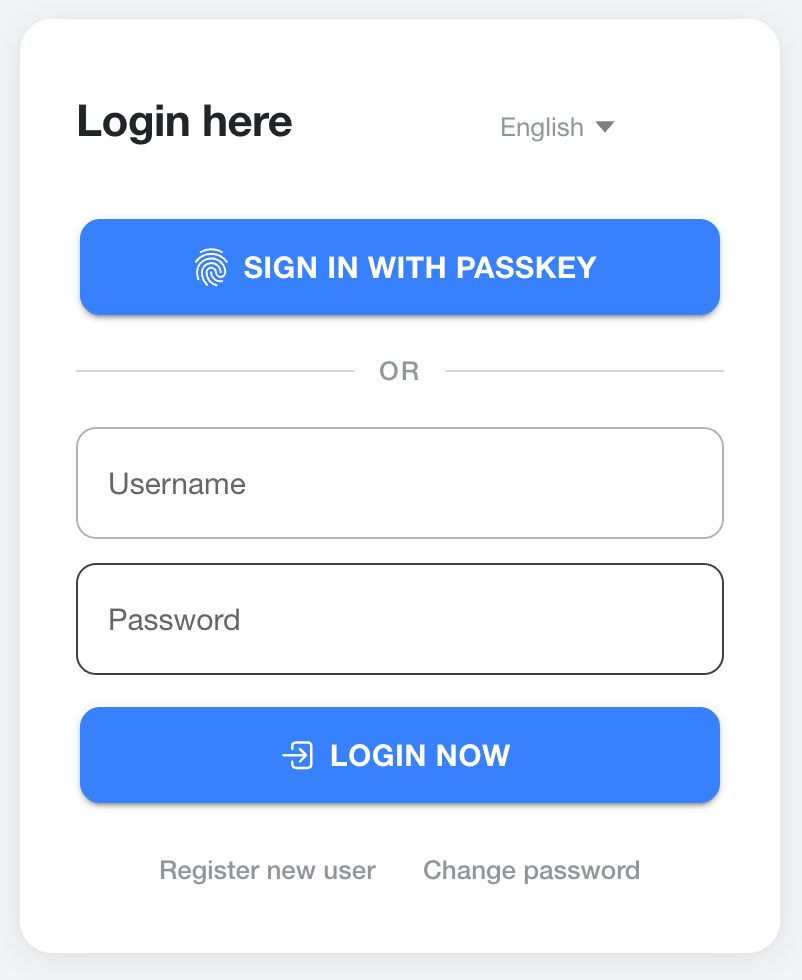
The UX decision: show the passkey button prominently at the top of the login page. If the browser supports passkeys, it’s the first thing users see. If not, the button simply doesn’t render:
<!-- Passkey first -->
<ion-button v-if="passkeySupported" color="primary" class="passkey-btn"
    @click="loginWithPasskey" expand="block">
  <ion-icon :icon="fingerPrintOutline" slot="start"></ion-icon>
  {{ t("login.passkeyBtn") }}
</ion-button>
<!-- Divider -->
<div v-if="passkeySupported" class="or-divider">
  <span>{{ t("login.orDivider") }}</span>
</div>
<!-- Username / password form below -->
The login handler in the auth store uses dynamic imports to keep the passkey bundle out of the critical path:
async loginWithPasskey(username?: string) {
  const { usePasskey } = await import('@/composables/usePasskey');
  const { authenticateWithPasskey } = usePasskey();
  const data = await authenticateWithPasskey(username);
  if (data.id && data.username && data.jwtToken) {
    const token = jwtDecode(data.jwtToken) as any;
    this.username = data.username;
    this.id = data.id;
    this.authToken = data.jwtToken;
    this.refreshToken = data.refreshToken ?? "";
    this.roles = data.roles ?? [];
    this.issued = token.iat;
    this.expires = token.exp;
    // Refresh all user data
    await Promise.all([
      this.refreshFullProfile(false),
      financialStore.refreshCart(),
      calendarStore.refreshVisits(),
      calendarStore.refreshReservations(),
    ]);
  }
}
The response from passkey authentication is identical to a password login — same JWT, same refresh token, same user data. The auth store doesn’t need to know which method was used.
Profile Page — Managing Passkeys
Users manage their passkeys from their profile page. Each registered passkey shows its friendly name, creation date, and last-used timestamp:
<ion-item-divider>
<ion-label>{{ t('passkey.title') }}</ion-label>
</ion-item-divider>
<ion-grid v-if="passkeySupported">
<ion-row v-for="pk in passkeys" :key="pk.id">
<ion-col>
<ion-item lines="none">
<ion-icon :icon="fingerPrintOutline" slot="start"></ion-icon>
<ion-label>
<h3>{{ pk.friendlyName || t('passkey.unnamed') }}</h3>
<p>{{ t('passkey.created') }}: {{ m(pk.createdAt).format('L') }}</p>
<p v-if="pk.lastUsedAt">
{{ t('passkey.lastUsed') }}: {{ m(pk.lastUsedAt).format('L LT') }}
</p>
</ion-label>
<ion-button fill="clear" color="danger" slot="end" @click="removePasskey(pk.id)">
<ion-icon :icon="trashOutline"></ion-icon>
</ion-button>
</ion-item>
</ion-col>
</ion-row>
<ion-row>
<ion-col>
<ion-button fill="outline" color="primary" @click="addPasskey">
<ion-icon :icon="addOutline"></ion-icon> {{ t('passkey.addBtn') }}
</ion-button>
</ion-col>
</ion-row>
</ion-grid>
<ion-text v-else color="medium">
<p>{{ t('passkey.notSupported') }}</p>
</ion-text>
The “Add passkey” button opens a name prompt (via Ionic’s alertController) and then calls registerPasskey. Registration requires an existing session — users log in with their password first, then add a passkey from their profile.
The .well-known Files
Three configuration files make passkeys work with native apps. Without them, passkeys silently fail on mobile or refuse to work across related domains. These files are served from your backend’s wwwroot/.well-known/ directory.
Android — assetlinks.json
[
  {
    "relation": ["delegate_permission/common.handle_all_urls"],
    "target": {
      "namespace": "android_app",
      "package_name": "fi.eport.training",
      "sha256_cert_fingerprints": [
        "F0:EF:B2:BE:98:..."
      ]
    }
  },
  {
    "relation": ["delegate_permission/common.get_login_creds"],
    "target": {
      "namespace": "android_app",
      "package_name": "fi.eport.training",
      "sha256_cert_fingerprints": [
        "F0:EF:B2:BE:98:..."
      ]
    }
  }
]
Two relations are needed. handle_all_urls enables deep links — standard Android App Links. get_login_creds is specifically for credential sharing — it tells Google Password Manager that this app and this domain share passkeys. Without get_login_creds, the handle_all_urls relation alone is not enough for passkeys.
To get your SHA-256 fingerprint, run keytool -list -v -keystore your-keystore.jks and look for the SHA-256 entry. Make sure you use your release signing key — the debug key fingerprint is different and won't work in production.
iOS — apple-app-site-association
{
  "applinks": {
    "apps": [],
    "details": [
      {
        "appID": "HEXXXXXX.fi.eport.training",
        "paths": ["/resetWithToken*"]
      }
    ]
  },
  "webcredentials": {
    "apps": [
      "HEXXXXXX.fi.eport.training"
    ]
  }
}
The webcredentials section is what enables passkeys on iOS. It tells iCloud Keychain that this app is authorized to use credentials for this domain. The format is TEAMID.bundleId — the Team ID comes from your Apple Developer account.
The applinks section is for Universal Links (separate concern) but typically configured alongside webcredentials. Both require the Associated Domains capability in your Xcode project — add webcredentials:yourdomain.com and applinks:yourdomain.com entries.
Summary
FilePlatformPurposeassetlinks.jsonAndroidCredential sharing (get_login_creds) and deep linksapple-app-site-associationiOSPasskey authorization (webcredentials) and Universal Links.well-known/webauthnAllRelated origin requests (passkey reuse across domains)
If your app is served from multiple domains with the same RP ID, you need a /.well-known/webauthn endpoint to declare related origins. This tells the browser that multiple origins can share passkeys registered against a single Relying Party. Ours is a minimal endpoint in “Program.cs” that reads the config we set up earlier:
app.MapGet("/.well-known/webauthn", (IConfiguration config) =>
{
    var origins = config.GetSection("Fido2:RelatedOrigins").Get<string[]>() ?? [];
    return Results.Json(new { origins });
});
With this in place, a user who registered a passkey on oma.hippa.fi can use it to log in from oma.poltesali.fi.
Bonus: Capacitor Native Support
The web implementation works in mobile browsers, but a native Capacitor app needs to bridge WebAuthn to the OS-level passkey APIs. The WebView doesn’t expose navigator.credentials natively. Two packages solve this.
capacitor-webauthn
The capacitor-webauthn v8.0.0 plugin exposes the same startRegistration / startAuthentication API surface as @simplewebauthn/browser. That's why the platform branching in our composable is so clean — the three helper functions at the top of usePasskey.ts are the entire native integration:
async function startRegistration(options: any) {
  if (isNative) {
    return Webauthn.startRegistration(options);
  }
  return webStartRegistration({ optionsJSON: options });
}
No separate native flows, no different data structures. The server doesn’t know or care whether the client is web or native.
Biometric Fallback
Passkeys inherently use biometrics (Face ID, Touch ID, fingerprint) as the user verification step. But you might also want biometric-gated auto-login as a separate feature — when the app opens and the JWT has expired, prompt Face ID and use the refresh token to get a new JWT without showing the login page.
We use @aparajita/capacitor-biometric-auth v10.0.0 for this:
export function useBiometric() {
  async function isAvailable(): Promise<boolean> {
    if (!Capacitor.isNativePlatform()) return false;
    try {
      const { BiometricAuth } = await import('@aparajita/capacitor-biometric-auth');
      const result = await BiometricAuth.checkBiometry();
      return result.isAvailable;
    } catch {
      return false;
    }
  }
  async function authenticate(reason: string): Promise<boolean> {
    try {
      const { BiometricAuth } = await import('@aparajita/capacitor-biometric-auth');
      await BiometricAuth.authenticate({ reason, cancelTitle: 'Cancel' });
      return true;
    } catch {
      return false;
    }
  }
  return { biometricEnabled, isAvailable, authenticate, enable, disable };
}
This is a complement to passkeys, not a replacement. Passkeys handle the initial login ceremony. Biometric auth handles the “welcome back” experience on native apps.
Native Gotchas
A few things we learned the hard way:
- The .well-known files must be served from the domain matching your RP ID, not from the app itself. If your RP ID is oma.hippa.fi, that domain must serve the AASA and assetlinks files.
- On iOS, the webcredentials association must be configured both in the AASA file and in the Associated Domains capability in the Apple Developer portal. Missing either side silently fails.
- On Android, the signing key fingerprint must match exactly. Debug keys and release keys produce different fingerprints — passkeys registered with a debug build won’t work with a release build.
- The get_login_creds relation in assetlinks.json is specifically required for passkey credential sharing. handle_all_urls alone is not sufficient.
- Test on real devices. iOS Simulator has partial passkey support that behaves differently from a real iPhone. Android emulators work better but still have edge cases.
Wrap-Up
That’s a complete passkey implementation: a .NET backend with fido2-net-lib handling the FIDO2 protocol, a Vue frontend with @simplewebauthn/browser letting the browser do the cryptography, .well-known files linking native apps to your domain, and a Capacitor bridge making it work on iOS and Android.
The code is surprisingly manageable once you understand the pattern: server generates a challenge, browser/device signs it, server verifies. The libraries handle the encoding, decoding, and cryptographic validation. Your job is to store the public key, cache the challenge, and wire up the endpoints.
A few things to keep in mind for production:
- Challenge cache: MemoryCache works for single-instance deployments. If you're load-balanced, use Redis or another distributed cache so the verify endpoint hits the same challenge regardless of which instance handles the request.
- Recovery: Encourage users to register multiple passkeys (phone + laptop + security key). Keep password login as a fallback until passkey adoption is high.
- Sign count monitoring: A decreasing sign count could indicate a cloned authenticator. Consider logging or alerting on this.
- Keep libraries updated: The WebAuthn spec continues to evolve. Both fido2-net-lib and @simplewebauthn/browser are actively maintained.
References:
- fido2-net-lib — .NET FIDO2 library
- SimpleWebAuthn — Browser WebAuthn helper
- webauthn.guide — Conceptual overview
- Microsoft — ASP.NET Core Passkeys — Official docs
- passkeys.dev — Related origins and implementation guides
- web.dev — Related Origin Requests — Cross-domain passkeys
Code simplified from a production application.